
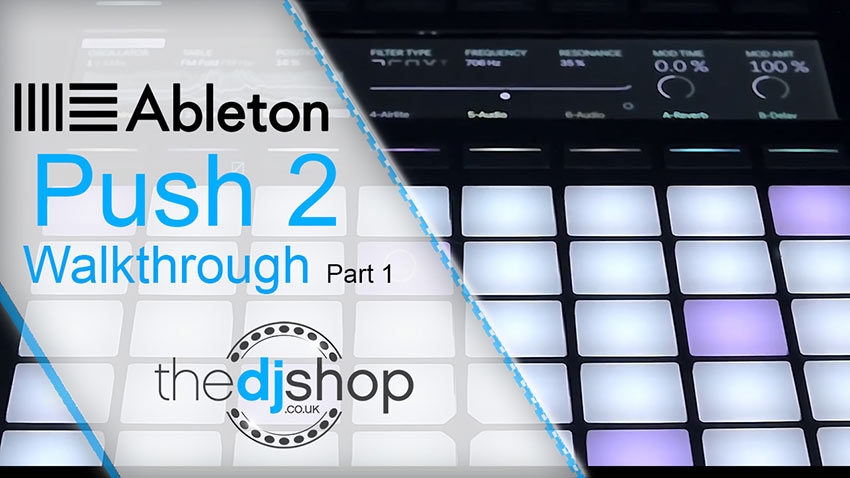
The Ableton Push 2 is a fully featured performance and production controller for Ableton Live. The Push 2 comes with a large full-colour display as well as eleven multi-functional rotary encoders, 64 RGB backlit velocity and pressure sensitive pads, plus an array of high-quality, durable buttons for editing and performing within Live. The Push allows you to control almost every aspect of Ableton performance, including clip creation, sound design, and FX tweaking, without needing to touch your keyboard or mouse. The best way to demonstrate the power of this amazing device is to get straight into using it, so we are going to create a basic session with drums, bass, and a sampled loop all without touching your computer.
| Ableton Push 2 Walkthrough |
Here we have a new Ableton Live session open; we are going to use the browser on the Push to add an instrument. To access the browser simply press the browse button found in the top right-hand corner of the device. You can use the encoders to scroll through the menus to find sounds, instruments, and effects. We are going to start with a 909 drum kit, so navigate to the drum section and scroll through the various kits until you find something you like. You will notice that the Push plays previews of the sounds as you scroll over them. Once you have found a kit, you are happy with press the load button to open that kit.
Once a drum kit is loaded, the drums are available on the bottom left 16 pads. The top 32 pads become a sequencer so you can easily lay down a beat. Click the kick drum and start drawing in some notes, then layer in a snare; so you get a classic four on the floor beat. Next, we are going to add in a closed hi-hat. There are multiple ways of doing this, you can play them in using the record button, or use the note repeat function to get a quantised and solid loop by using the dividers found on the right-hand side of the device to change the speed of the note repeats. When you have a pattern you like, use the record button to play in the notes, tap the record button again and it will start playing back the newly added pattern. Now we are going to go to the mixer and turn down the drums a little as it is a bit too loud at the moment.
Next, we are going to select another track to add in a bassline. Press browse to open up the browser window, scroll to the sounds sections and go to bass, once again, the sounds will preview as you navigate through them. When you have found a bass sound you are happy with, press load to open it up, and the pads at the bottom of the device will become playable. The coloured notes shown are octaves while the white notes are all in key; you can change the key and scale you are playing in by pressing the scale button on the right-hand side of the device. You can use the rotary encoders to choose which scale is being played, and using the buttons you can select a root note for your scale.
Now play around until you have found a bassline you are happy with, and press the record button to start recording a sequence. When you have finished recording, and a sequence is looping, press the quantise button on the left-hand side of the device to quantise the notes. If you want to tweak your sound, press the device button and the screen will show you the most used parameters of the synth. If you want to record the automation of some of the parameters, ensure record is on as well as the automation button, and then move the knobs to automate your sound. Turn the bassline down a little bit using the mixer to balance it with the drums.
Next, we are going to add a drum loop, so hit add track and navigate to the simpler instrument to import some drums. Scroll to the instrument section in the menu and find simpler in the list, once found press load. You will notice that when it is loaded the screen says press browser to load a sample.
Press browse once again and navigate to the user files to see your sample collection and find a suitable drum loop, once found press load to open it in the sampler. In its current traditional sampler mode, simpler will playback the loop up and down the keyboard at higher and lower pitches changing both the pitch and the tempo of the loop. To change that behaviour, and be able to trigger single drums from the loop, use the rotary encoders to change the mode to slicing. The slicing mode will automatically detect transients in the loop, and split it amongst the pads. Increasing or decreasing the sensitivity knob will change the number of slices that Ableton will perform on the loop. Now each pad will be assigned to a different slice in the loop all directly playable from the pads.
If you wish to sequence these drums just like we did at the start, we will need to convert them into a drum rack. To do this press the convert button and your sliced loop will then be available in a drum rack. This has sliced the loop into individual parts so you can sequence them using the standard step sequencer. Anytime you click a pad, that drum hit will be shown on the screen with a number of parameters you can adjust, so you can finely tune the samples such as start and end points, fade in and out, and you can even transpose them. Now we are going to use the note repeat function to record in a rhythm with this loop, again use the record button to record in a pattern that you are happy with.
This drum loop needs a bit of compression, so using the browser navigate to audio effects and scroll down to the compressor. Once loaded the screen provides you with a user interface that shows us everything that is happening in the audio, such as the transients and the threshold. Pull the threshold down, so it is tickling the tops of the transients and tweak some of the settings so that it evens out the volume of the drums. You can see the amount of gain reduction on the white graph at the top of the screen. As this compressor is making up for the gain reduction, we will need to lower the output gain slightly to compensate.
Now we are going to add an EQ to slightly tweak the drums a little bit further. Head to the audio effects in the browser, find the EQ eight and load it up. You will see we get a full spectrum graph and we can tweak the EQ using the knobs at the top. We are just going to increase the high end, using band four, as well as increase the low end a little, using band one. Balance it with the drums to ensure it isn’t too loud in the mix.
Head to the master channel and add an EQ on the master output. Add device, scroll down to audio effects and add in an EQ eight. Increase the high end to add a bit of shine, and then increase the low end to give the drums and bass a bit of boom. If you want to see what clips are playing on the Push press the session button to see what clips you have created.
That’s it for now on our walkthrough of the Ableton Push 2. We will be doing some more advanced tutorials soon so please keep your eyes peeled, many thanks for watching, we hope you have enjoyed it.

Share This Article